ToneRig

ToneRig 1.4.0 · iPhone, iPad, and Mac

Manual

The complete operating guide for building rigs, managing presets, and controlling ToneRig hands-free.

INPUTCOMPNAMCAB IRDELAYOUTPUT
01

Start here

Connect the hardware, confirm the route, and get a sound before building a larger rig.

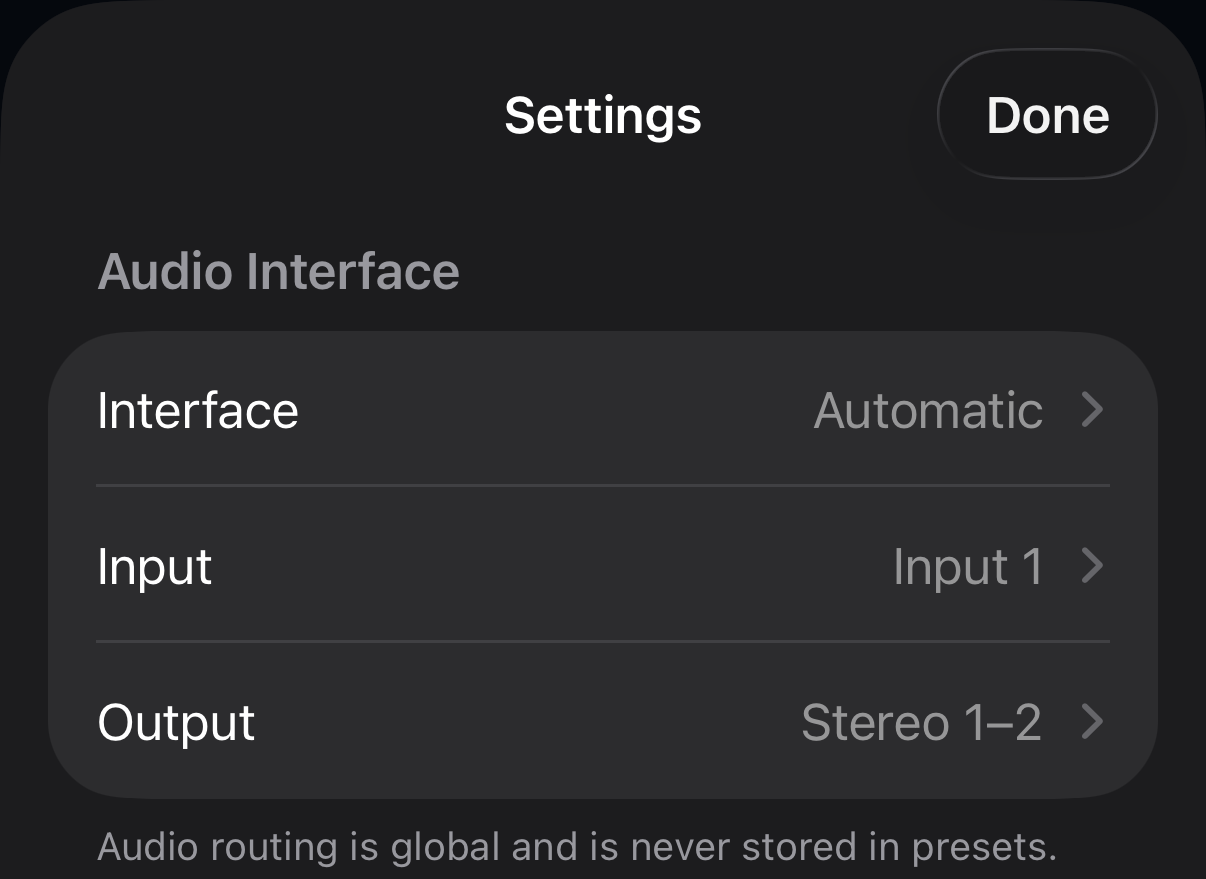
ToneRig Audio Interface settings showing interface, input, and output routing
ToneRig remembers interface input and main output choices; direct lane destinations travel with presets.

What you need

An iPhone or iPad running iOS 17 or later, or a compatible Mac, plus an audio interface, your instrument, and headphones or monitors connected to the interface. On iPhone and iPad, use a class-compliant USB interface. Bluetooth audio is intentionally rejected because its latency is too high for live playthrough.

Connect in the right order

Connect the interface to the device, plug your instrument into the interface, then open ToneRig. Turn off direct or hardware monitoring on the interface or you may hear the dry input and processed rig at the same time.

Choose input and output

Open Settings, then Audio Interface. Choose Automatic or a specific interface, select the instrument input, and choose a mono channel or stereo pair such as 1–2 or 7–8 if your interface offers it. ToneRig remembers the input and main output selections for each interface and restores them when it reconnects. Disconnecting Input B leaves Input A available without introducing an extra dry signal. Those selections are global; direct parallel-lane output destinations are saved with the preset.

Check the status

Settings shows the current device, sample rate, estimated latency, buffer size, and audio overload count. The workspace also shows input and output meters plus live CPU load. If the input meter does not move, check the selected channel and cabling first.

Balance latency and stability

In the standalone app, Settings → Audio Interface → Buffer Size offers 32 frames as Lowest latency and 64 frames as Very low latency. A smaller buffer feels faster but leaves less processing time for NAM and effects. Raise it if the overload counter climbs or the sound crackles. Changing it briefly restarts audio; in AUv3, the host chooses the buffer size.

Use a small screen or Display Zoom

The workspace adapts to the available screen width, including small phones such as iPhone SE and iPhones using Display Zoom with Larger Text. The header, Snaps strip, LIVE dock, status bar, and chain canvas scale to fit. Set Display Zoom in the iPhone’s Settings → Display & Brightness; ToneRig uses the space provided by that setting.

Keep the workspace visible

On iPhone and iPad, ToneRig keeps the display awake while the app is active so it stays visible during a session. Lock the device yourself when you are finished.

02

Workspace and signal chain

The chain runs from a fixed Input to Output. Everything between them can be arranged around the way you play.

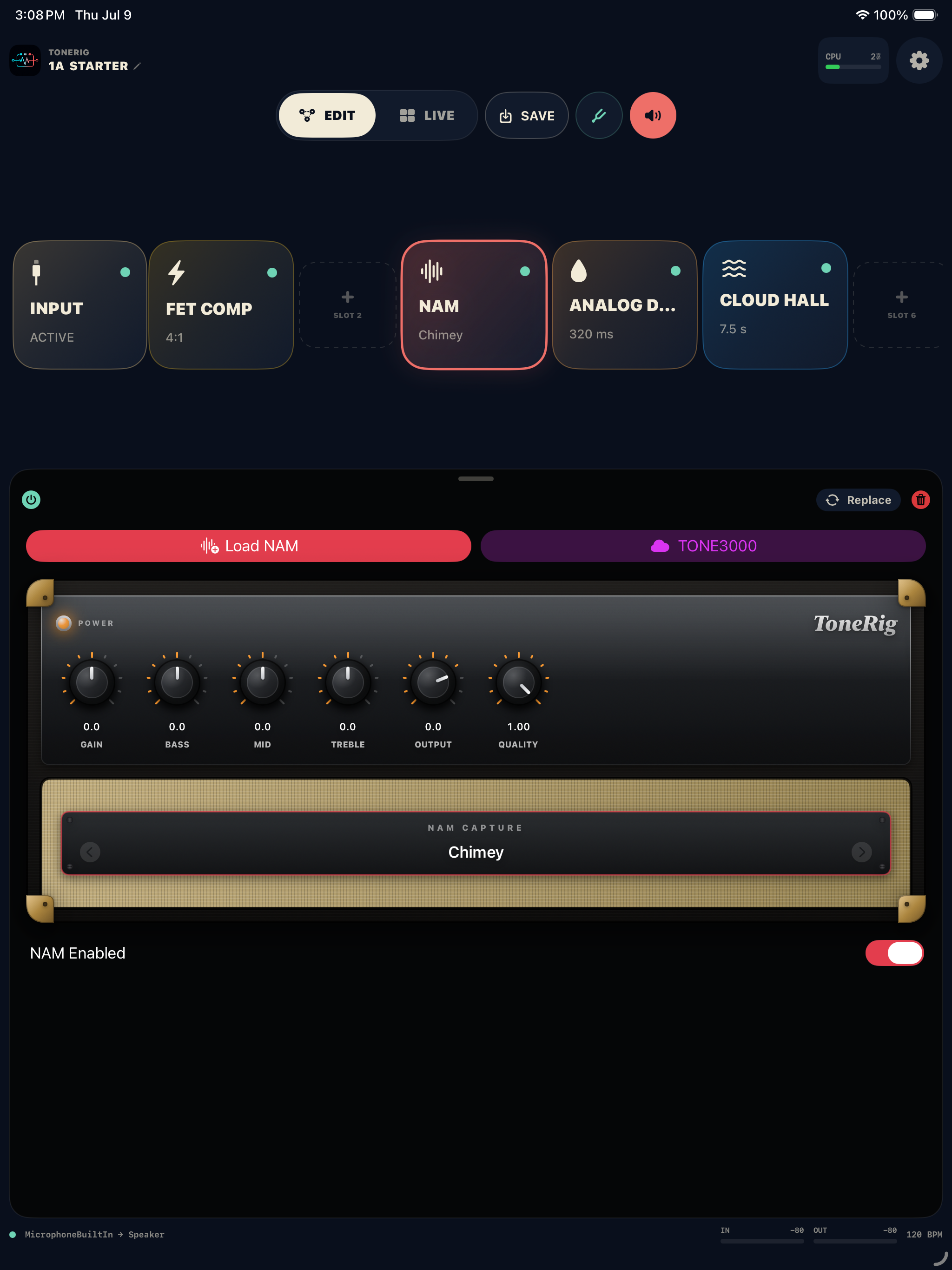
ToneRig Edit workspace with a reorderable signal chain and NAM controls
Tap for controls. Double-tap for bypass. Touch and hold for the full action menu.
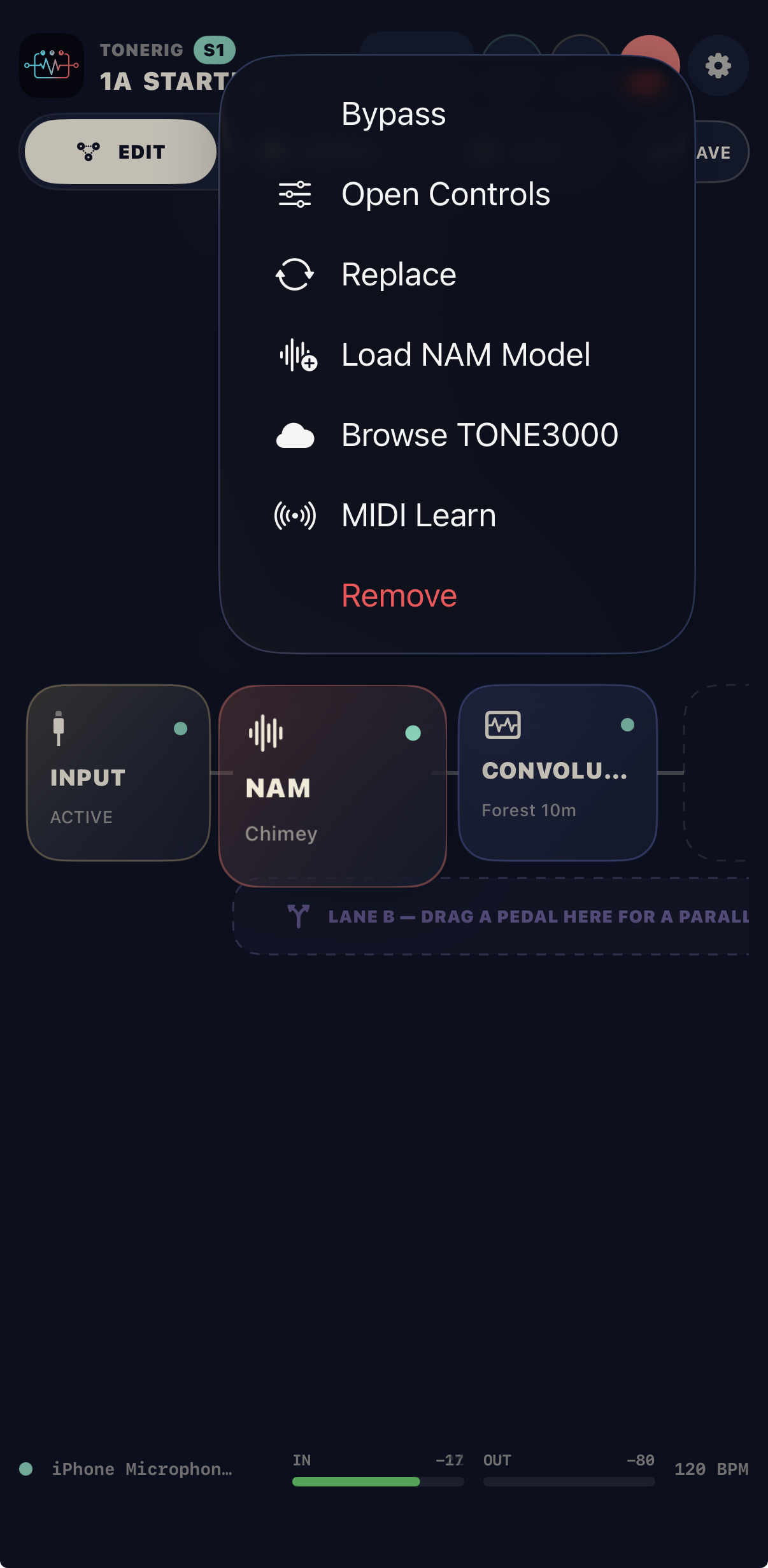
ToneRig NAM block action menu with bypass, controls, replacement, loading, MIDI Learn, and remove actions
The NAM block menu puts structural editing, loading, bypass, and MIDI Learn in one place.

Edit mode

Use Edit to add, replace, remove, reorder, and configure blocks. Tap a block to open its quick controls. Drag blocks to change the signal order. Input and Output remain fixed endpoints.

Double-tap to bypass

Double-tap any effect block to bypass or enable it without opening controls. You can also touch and hold the block and choose Bypass or Enable from the menu.

Touch and hold for more

A block's menu includes Open Controls, Replace, MIDI Learn Bypass, and Remove. Hosted Audio Unit blocks also offer their own MIDI controls. NAM blocks also expose Load NAM Model and Browse TONE3000; Cab IR and Convolution Reverb blocks expose their matching libraries.

Parallel routing

Insert a split and merge to create a second lane. The split can copy the signal, balance the lanes, or divide frequencies at a crossover; each lane can also use its own interface input. Set level and pan for both lanes at the merge, then save the route with the preset. Parallel lanes also work in AUv3, where the host manages hardware outputs.

Independent lane outputs

In the standalone app, tap an output block and assign Output A or Output B to Main Output or a direct mono channel or stereo pair on a multichannel interface. Output B requires ToneRig Pro. A direct lane leaves before the shared blocks after MERGE; lanes sent to Main Output rejoin there. Sending both lanes to the same destination mixes them. A destination missing from the connected interface stays silent until it is available again. Output assignments travel with the preset and cannot be changed while editing Snaps.

Output level and master trim

Tap Main Output or a direct Output A or Output B endpoint for its own level, mono switch, global EQ, and master trim. Output level is saved with presets and Snaps; EQ, mono, and master trim stay with that output across presets. A direct lane keeps its lane level, pan, and polarity settings before its own output controls. The existing Main Output trim remains a global room adjustment.

Rename blocks and fine-tune controls

Rename a NAM, Cab IR, or effect block without breaking the presets that reference it. Built-in effects offer a compact slider view as well as their detailed editor. Drag rotary controls for finer adjustments; the VANE Rate and Drop interval controls use relative dragging so touching them does not jump to a new value.

Hide unused slots

Settings → Chain → Hide Empty Blocks packs the chain down to the blocks in use plus one open add slot. When every slot is full, the add slot disappears.

Quality and CPU

A2 NAM captures can use a per-preset quality value. Settings → NAM Quality can override every compatible model with one global quality level. Lower values reduce CPU use; turn the override off to return to each preset's saved value.

03

NAM, IRs, and effects

Load the amp and cabinet first, then use the rest of the chain as a real pedalboard.

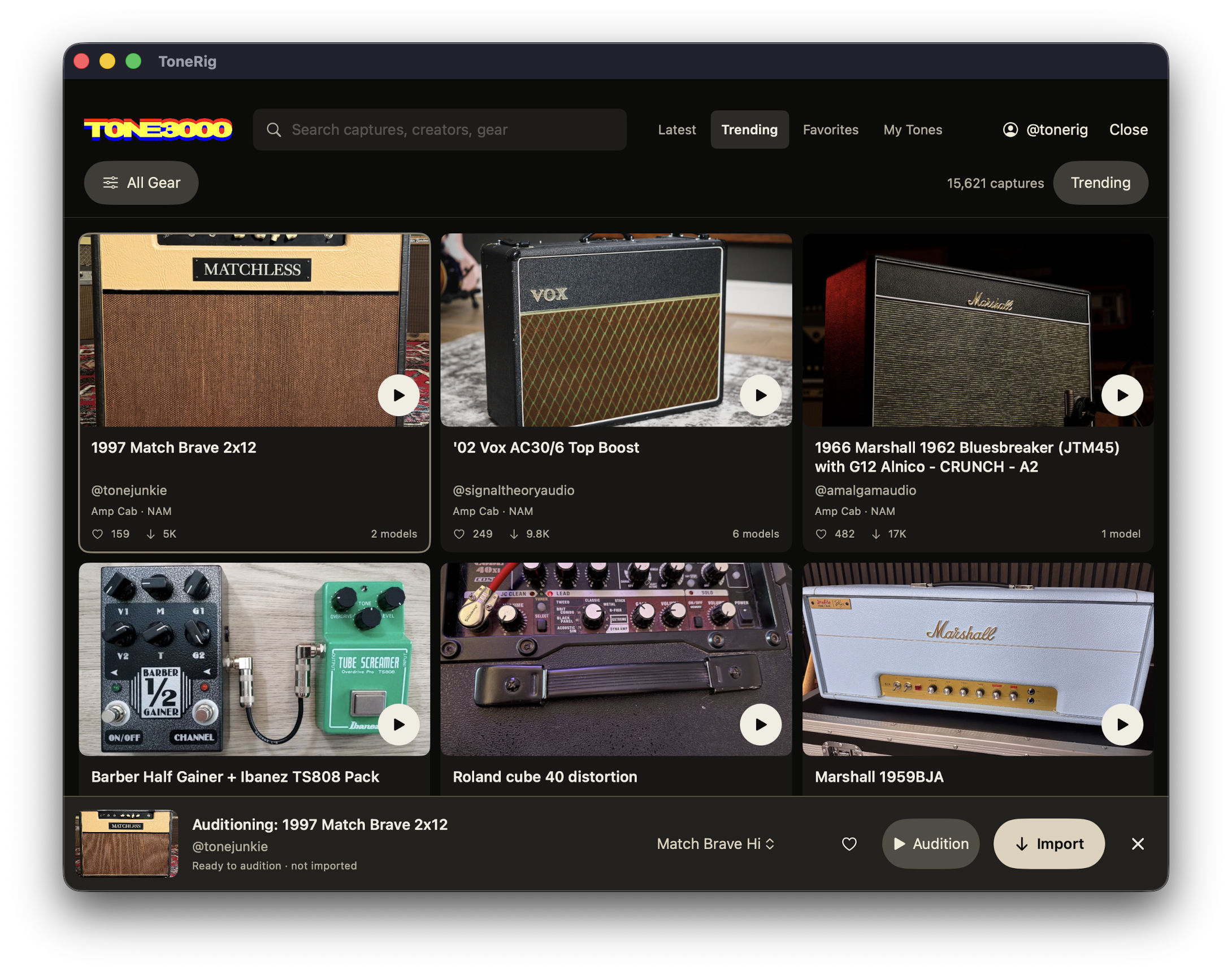
ToneRig native TONE3000 catalog showing search, feeds, capture cards, audition controls, and import
Search the full catalog, audition a specific model through the current rig, then import one model or the complete pack.
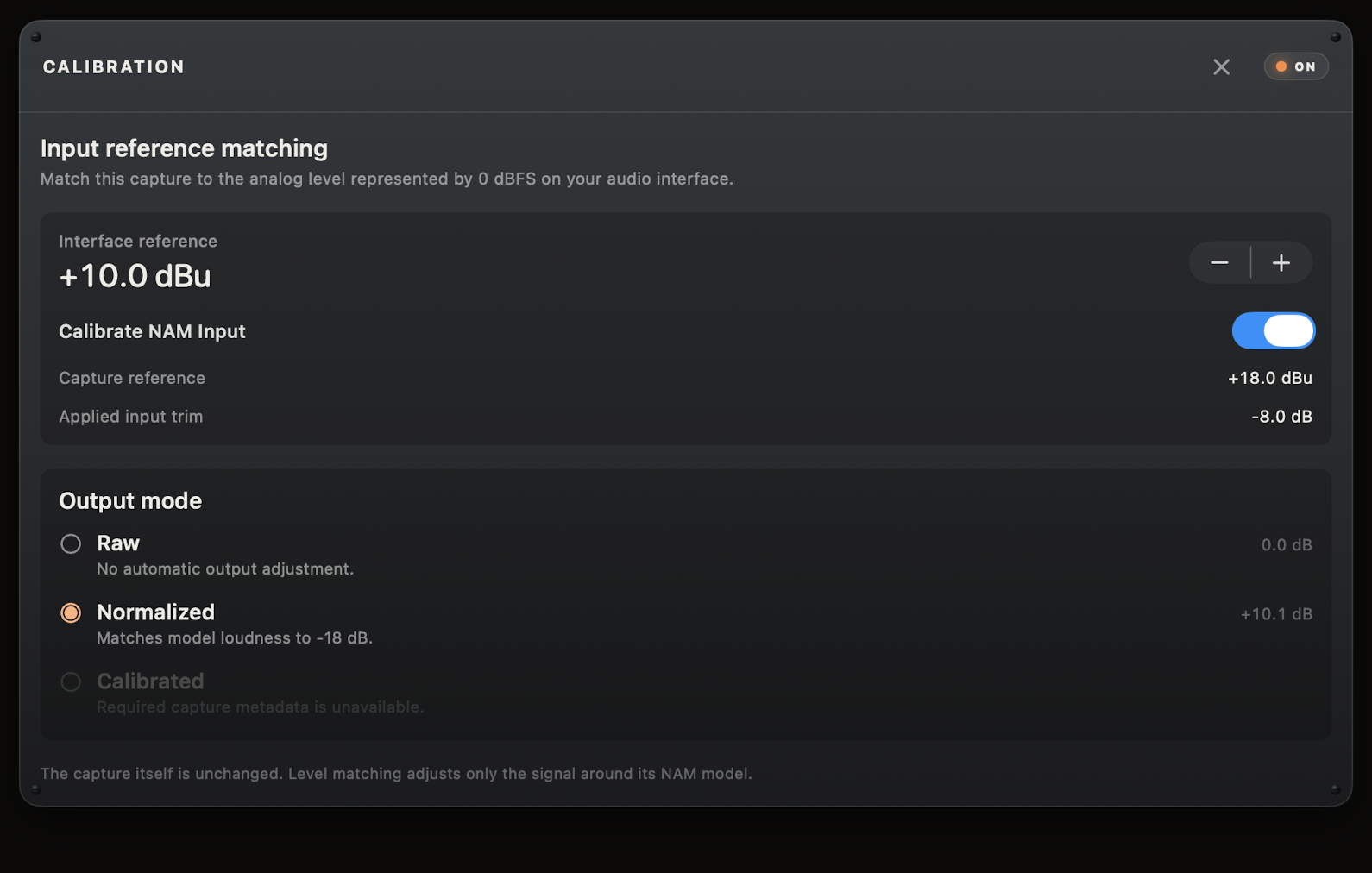
ToneRig NAM Calibration panel showing interface and capture references, applied input trim, and output modes
Calibration matches the interface and capture references around the model; the NAM file itself is never altered.
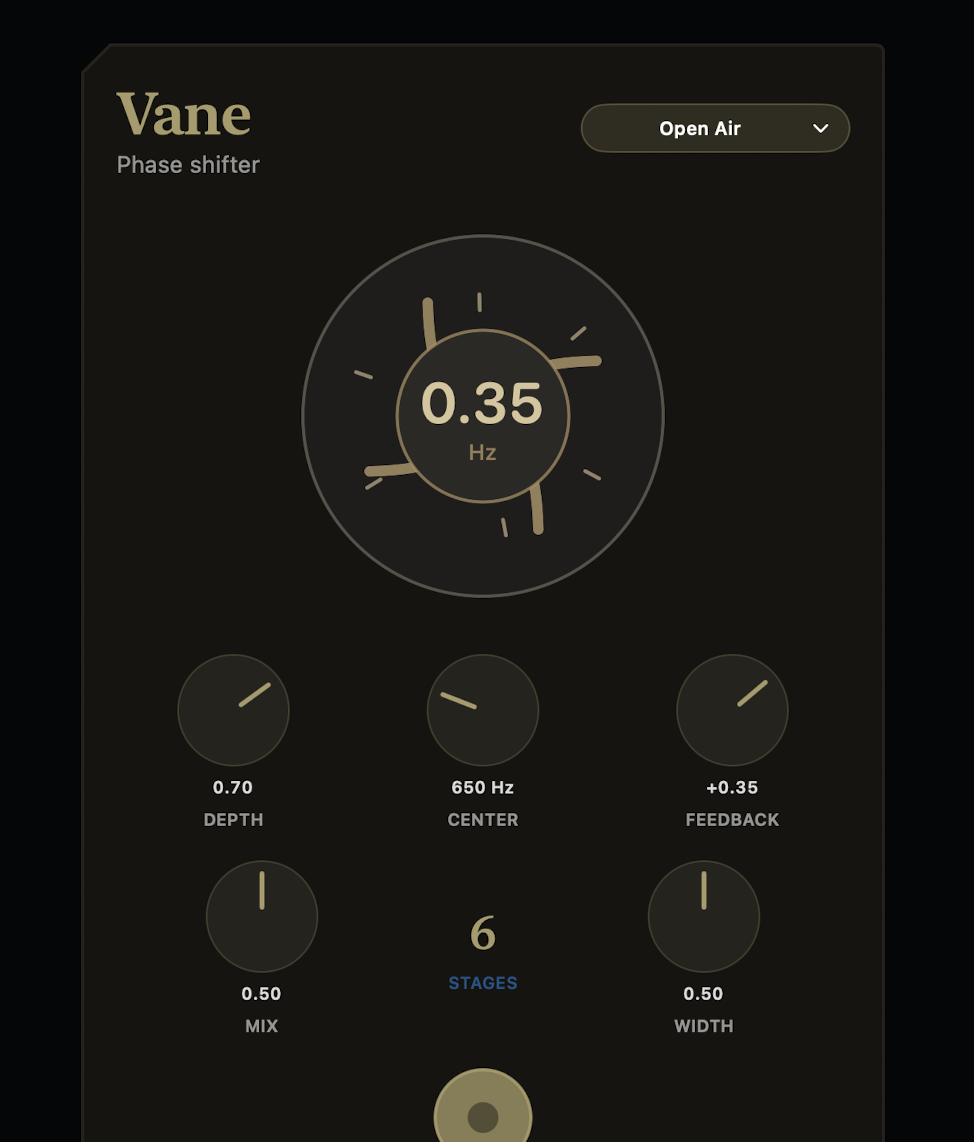
ToneRig VANE Phaser controls with animated sweep display, stage count, rate, depth, center, feedback, mix, and width
VANE pairs 4–12 phase stages with an animated stereo sweep.
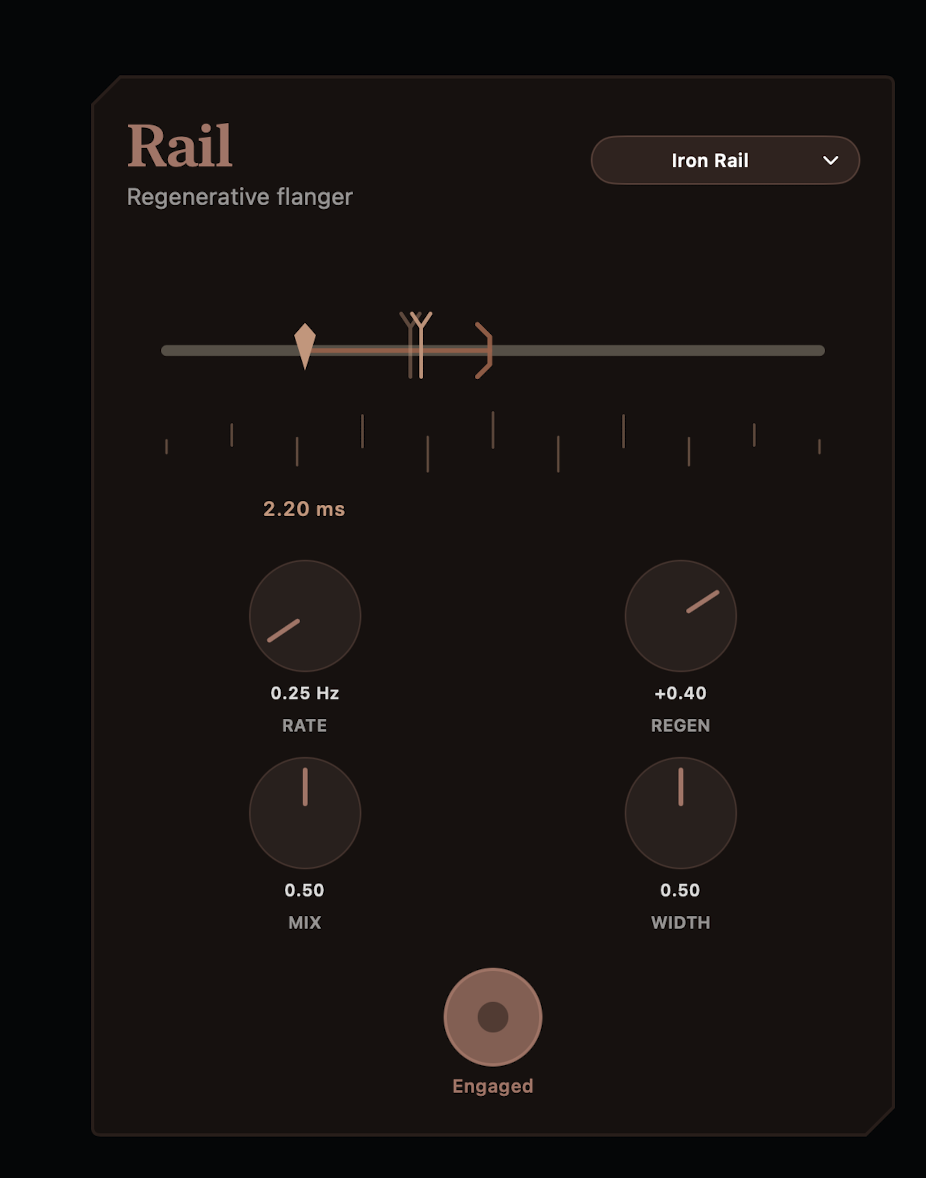
ToneRig RAIL Flanger controls with interactive delay rail, rate, regeneration, mix, and width
RAIL makes the flanger's base delay and moving modulation visible.

Load a NAM capture

Add or select a NAM block, then choose Load NAM to import a .nam file from Files. The library keeps imported captures available for other presets. Compatible A2 captures expose an adjustable quality control.

Browse TONE3000

From a NAM or Cab IR block, open the native TONE3000 catalog. Browse Latest, Trending, Favorites, or My Tones; search captures, creators, and gear; and narrow the results with the gear filter. Select a capture to choose an individual model, audition it through the current rig without importing it, then import that model or the complete pack. Cabinet IRs can be auditioned and imported from the same catalog. Closing the audition bar restores the exact block that was active before the preview.

TONE3000 in the Audio Unit

The AUv3 editor also has a native TONE3000 catalog for browsing, auditioning, and importing NAM captures and cabinet IRs without leaving your host. Sign in through the standalone ToneRig app once; its account is securely shared with the extension.

Delete several library files

Open the NAM, cabinet IR, or reverb IR library and choose Select. Select the files to remove, then use the delete action and confirm. This works in the app and AUv3. Files currently loaded in the signal chain are kept and identified; deleting a room IR clears reverb blocks that use it. Back up files you want to keep before deleting.

Delete a NAM pack

Open the pack’s folder in the NAM Library and use its delete button, including on iPhone or in a narrow window. Pack deletion includes subfolders and clears favorites for removed files. Files in use are checked before the pack can be deleted.

Step through captures and IRs

Use previous and next to move through library files. A file that fails to load is skipped on the next step, and rapid repeated selections finish on the last requested file. AUv3 cabinet IR load failures are reported rather than displaying a file that did not load.

Favorite a NAM capture

Use the favorite control on the loaded NAM to mark a capture you return to often. Favorites are available while browsing your NAM library.

Read a synced delay time

When delay tempo sync is enabled, the time knob displays the selected note division rather than only SYNC. Use the division together with the current tempo to choose the delay rhythm.

Calibrate NAM levels

Open a NAM block's Calibration panel and set the interface reference to the analog input level that your interface maps to 0 dBFS. When a capture includes its own input reference, Calibrate NAM Input shows that reference and applies the difference as input trim without changing the capture file. Output mode offers Raw for no adjustment, Normalized to match model loudness to -18 dB, and Calibrated when the capture provides the metadata needed to reproduce its referenced output level. Selecting a new capture defaults to Calibrated when output calibration data is available, otherwise Normalized. Loading a saved preset retains its saved mode.

Cabinet and room IRs

Cab IR accepts mono WAV impulse responses and pairs naturally after a NAM block. Convolution Reverb includes 17 bundled spaces and can import room IRs, visualize and trim the response, set pre-delay, balance early and late energy, change width, and shape the output EQ.

Organize libraries

Import individual files or whole folders. Packs in the NAM and IR browsers can be expanded or collapsed together and deleted with confirmation. A pack that contains a file currently used by the signal chain is kept until the file is no longer loaded.

Built-in effects

The current pedalboard includes FET and opto compressors, Noise Gate, parametric EQ, wah, Auto Filter, chorus, tremolo, octaver, Auto Swell, VANE Phaser, RAIL Flanger, a Volume utility, digital delay, analog delay, tape delay, reverse delay, algorithmic reverb, modulated reverb, and convolution reverb, alongside NAM and Cab IR blocks.

Noise Gate

Add Noise Gate to quiet the signal between notes. Set Threshold for when the gate opens, Attack for how quickly it opens, Hold for how long it stays open, and Release for how smoothly it closes. It works in the standalone app and AUv3, with factory and user presets plus MIDI-mappable controls.

1176-style compressor meter

The FET compressor shows a gain-reduction and output meter with GR, +4, +8, and OFF front-panel modes. Its compact slider view uses a gain-reduction LED ladder. Watch the meter as you set compression rather than relying on the control positions alone.

VANE Phaser

VANE is a stereo phase shifter with 4-, 6-, 8-, and 12-stage modes. Rate sets the sweep speed, Depth its movement, Center the frequency range, and Feedback the amount of phased signal fed back into the effect. Mix blends dry and processed sound, while Width moves from mono to a wider stereo sweep. The animated vane display follows the modulation in real time.

RAIL Flanger

RAIL is a regenerative stereo flanger. Drag the marker on the rail to set the base delay in milliseconds, then use Rate for sweep speed and Regen for the amount and direction of feedback. Mix balances dry and flanged sound, and Width controls the stereo spread. The rail visualization shows the delay and modulation moving around the fixed reference point.

Volume block

Drop a Volume block anywhere in the chain to set level as a 0–100% control, with 100% as unity gain. Choose a Linear curve for even, predictable travel or a Logarithmic curve that tracks how the ear hears loudness, then bypass or engage it like any other block.

Auto Swell

Auto Swell fades each note in on its own and swallows the pick attack, giving a bowed, violin-like sound — like riding a volume pedal, hands-free. Trigger sets how loud a note must be to start a swell, and Attack sets how long it takes to reach full volume. Reset sets how far the signal must fall before another swell can begin, so a held note rides through without re-triggering, while Fall sets how long the note fades back to silence once it ends. Curve shapes the climb from a fast-then-slow rise to a slow, blooming swell, and Output adds make-up gain after the effect. Mode picks how quickly it re-arms between notes: Fast re-swells in the gaps of quick lines, while Slow rides through sustained passages. Like the other larger effects, it includes factory presets and saves your own named settings.

Auto Filter

Auto Filter is an envelope-controlled filter — an auto-wah that sweeps a resonant filter with your picking dynamics. Sens sets how hard your attack opens the filter and Range sets how far it sweeps, while Reso sets the resonance for anything from a gentle vowel to a sharp, quacky peak. Attack and Release control how quickly the filter follows your playing up and back down. Mode chooses a low-pass, band-pass, or high-pass character, and Direction sweeps the filter up as you dig in or down for a reverse-style vowel. Mix blends the filtered sound against the dry input, and Level trims the output. Like the other larger effects, it includes factory presets and saves your own named settings.

Effect presets

Larger built-in effects include factory presets and let you save your own named settings. Reusing a user-preset name overwrites it case-insensitively. Changing a control after recall marks the selection as Custom; your own presets can also be deleted.

Third-party AUv3 effects

ToneRig Pro can host installed AUv3 effects as blocks in the standalone chain. Pick an Audio Unit and tap its block to open the plug-in immediately in a floating, resizable window over the board; the title bar carries bypass and the bottom grip resizes the interface. Nested third-party AUv3 blocks are not supported inside ToneRig's AUv3 extension.
04

Looper

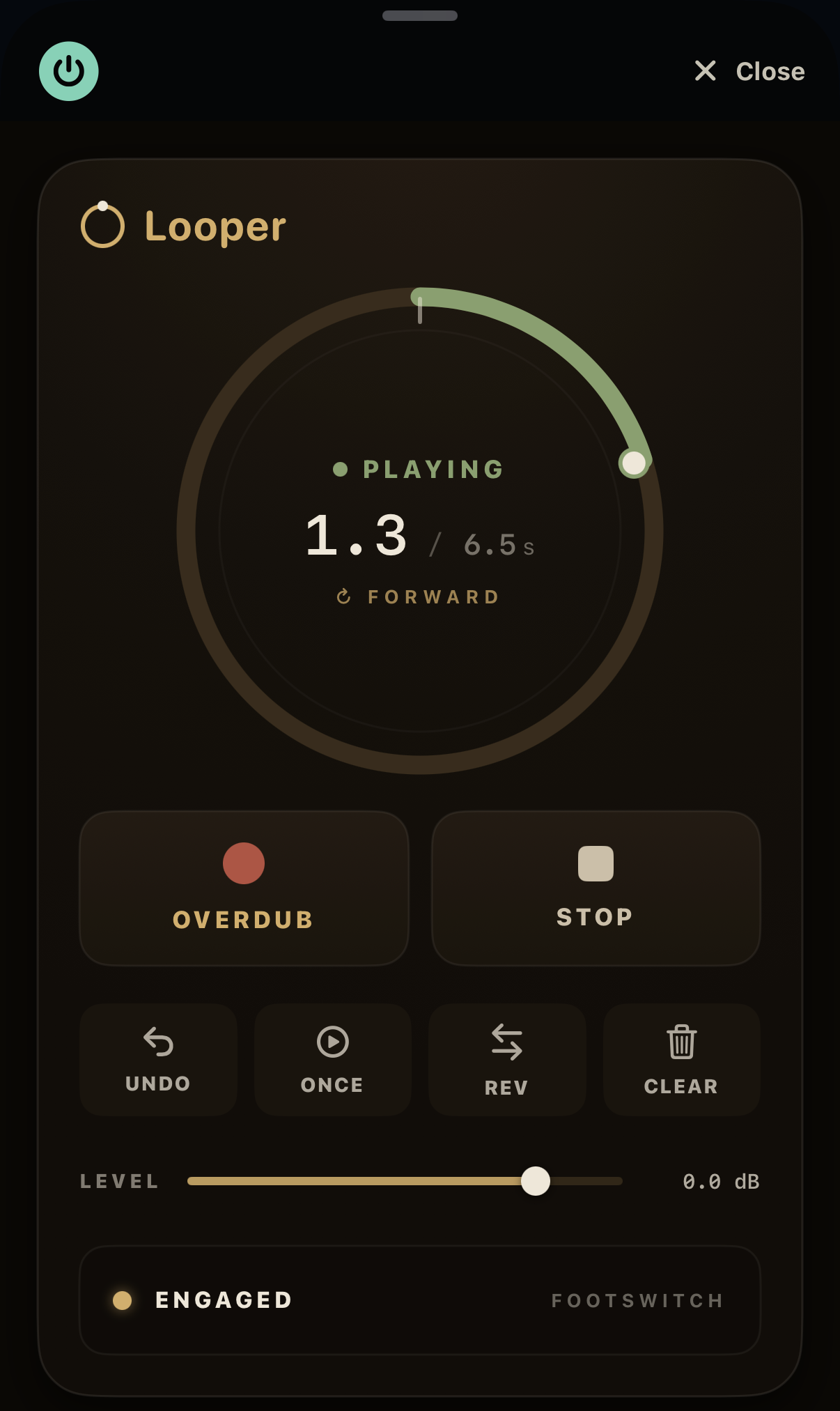
Record a phrase, loop it, and stack layers on top — hands-free, up to sixty seconds.

ToneRig Looper editor showing the loop ring mid-playback with overdub, stop, undo, once, reverse, clear, and a loop level control
The loop ring fills as you record and its head orbits during playback; transport and Loop Level sit below.

Add the Looper

Add one Looper block from the browser; a rig holds a single looper. Place it wherever you want to capture the sound — usually late in the chain so it records your full processed signal. Bypassing the block stops playback but keeps the recorded loop, so you can drop out and back in without losing the phrase.

Record, play, and overdub

Step on Record to start recording, then Stop/Play to close the loop and begin playback. With a loop playing, Record again to Overdub another layer on top, and Stop/Play to stop. The looper captures up to sixty seconds of stereo audio; recording past that closes the loop automatically.

Read the loop ring

The ring fills as you record and its head orbits while the loop plays, so you can watch the phrase go around. The center shows the transport state with the elapsed and total time, and the state colour changes with what the looper is doing — recording, playing, or overdubbing.

Undo, Once, Reverse, and Clear

Undo erases the most recent overdub, so a mistaken layer is one tap away. Once plays the loop a single time and stops. Reverse flips playback direction and the ring spins the other way. Clear erases the loop so you can start over.

Loop Level and Engage

Loop Level sets how loud the recorded loop sits under your live playing and can be assigned to a MIDI control. The Engage footswitch bypasses the block; because bypass only stops playback, the loop is still there when you re-engage.

Control it hands-free

Every transport control is MIDI-mappable. Open Settings, then MIDI Assignments, and expand the Looper section to learn a footswitch to Record/Overdub, Stop/Play, Undo, Play Once, Reverse, or Clear. Each command fires once per press, so a foot controller becomes a full looper pedal.

05

Presets, Snaps, and Live

Presets hold the whole rig. Snaps hold performance variations. Live turns the library into large stage-ready targets.

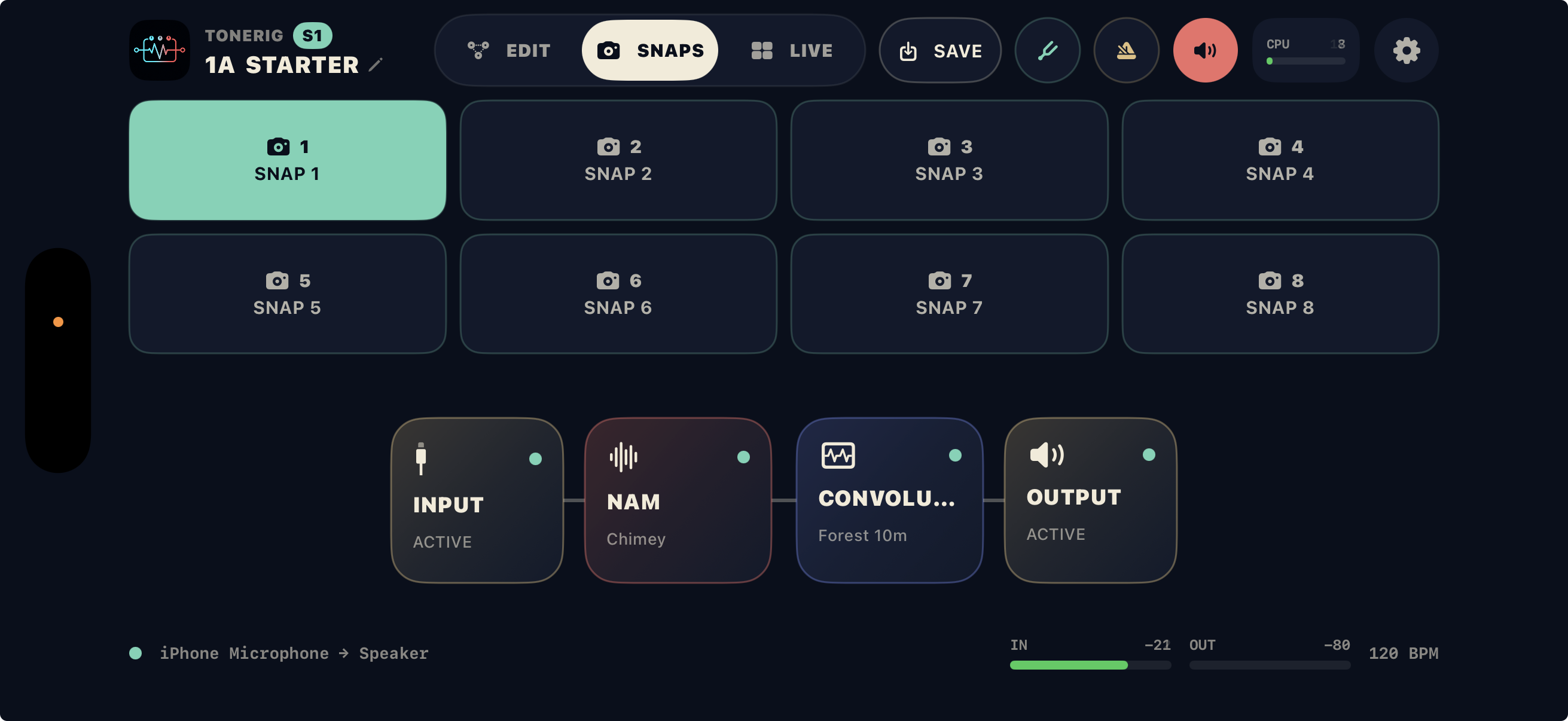
ToneRig Snaps workspace showing eight variations and the active signal chain
Eight Snaps sit above the unchanged signal chain; the active variation is always clear.
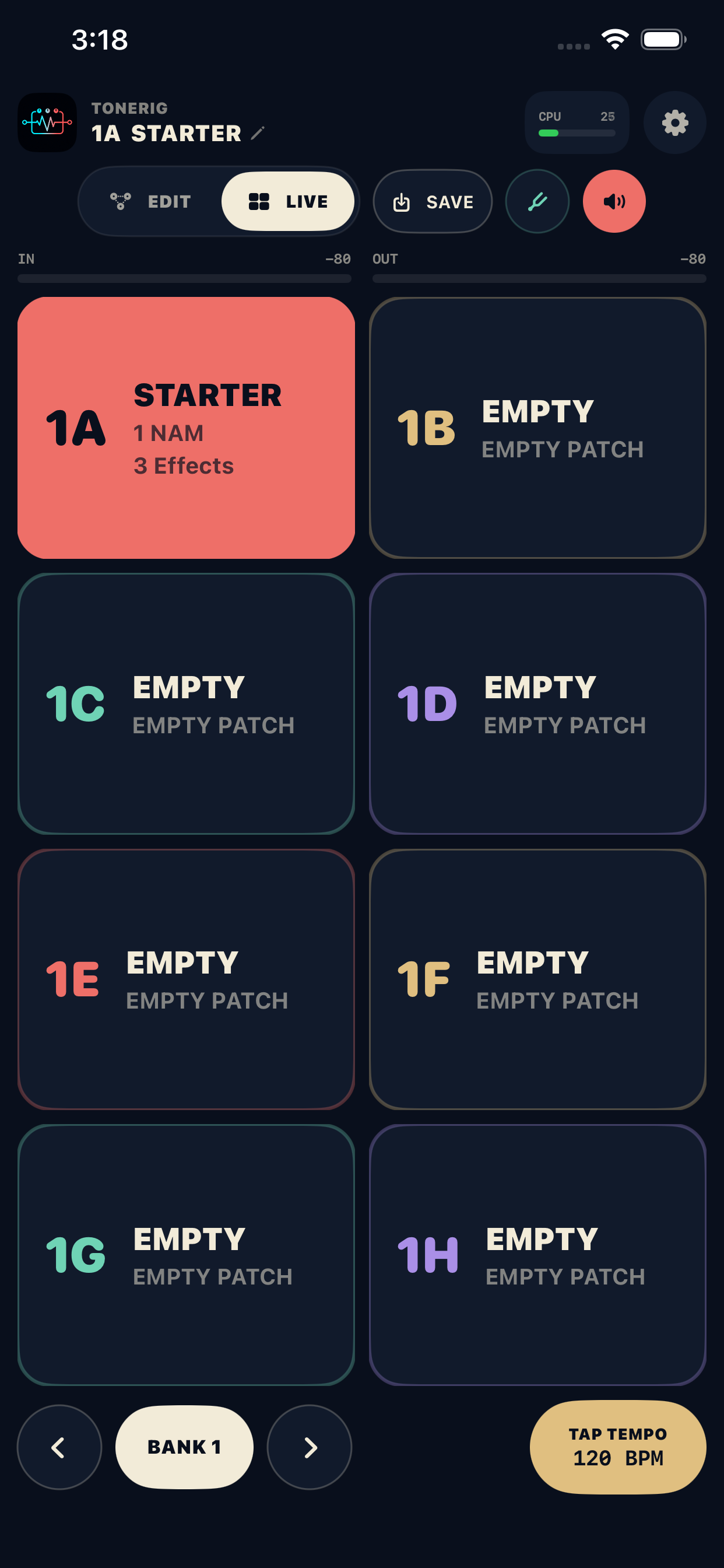
ToneRig Live mode showing eight large preset tiles
Live mode turns the bank into eight large preset targets.
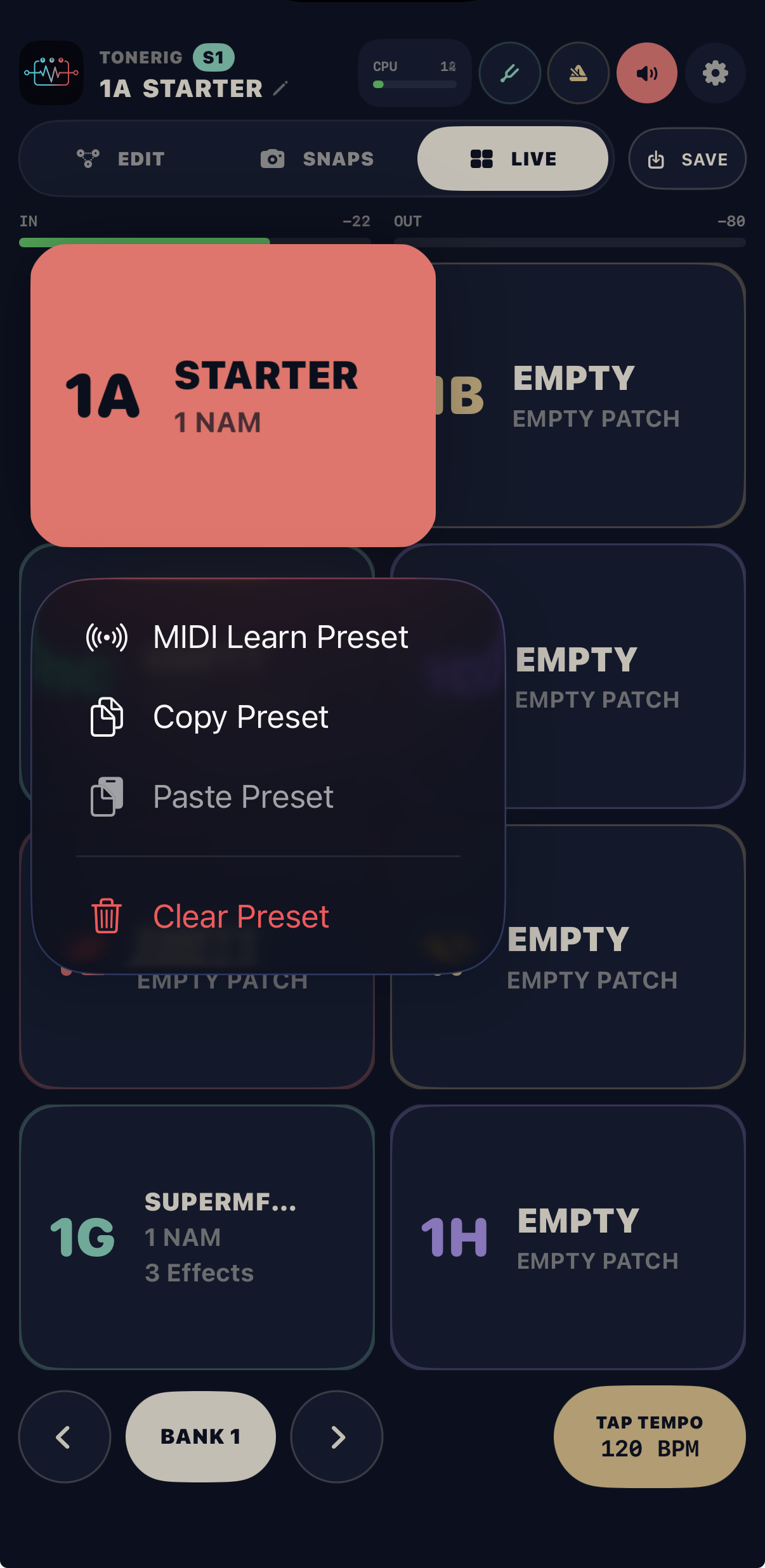
ToneRig preset menu showing MIDI Learn, Copy, Paste, and Clear Preset
Touch and hold a preset for MIDI Learn, copy, paste, or clear.
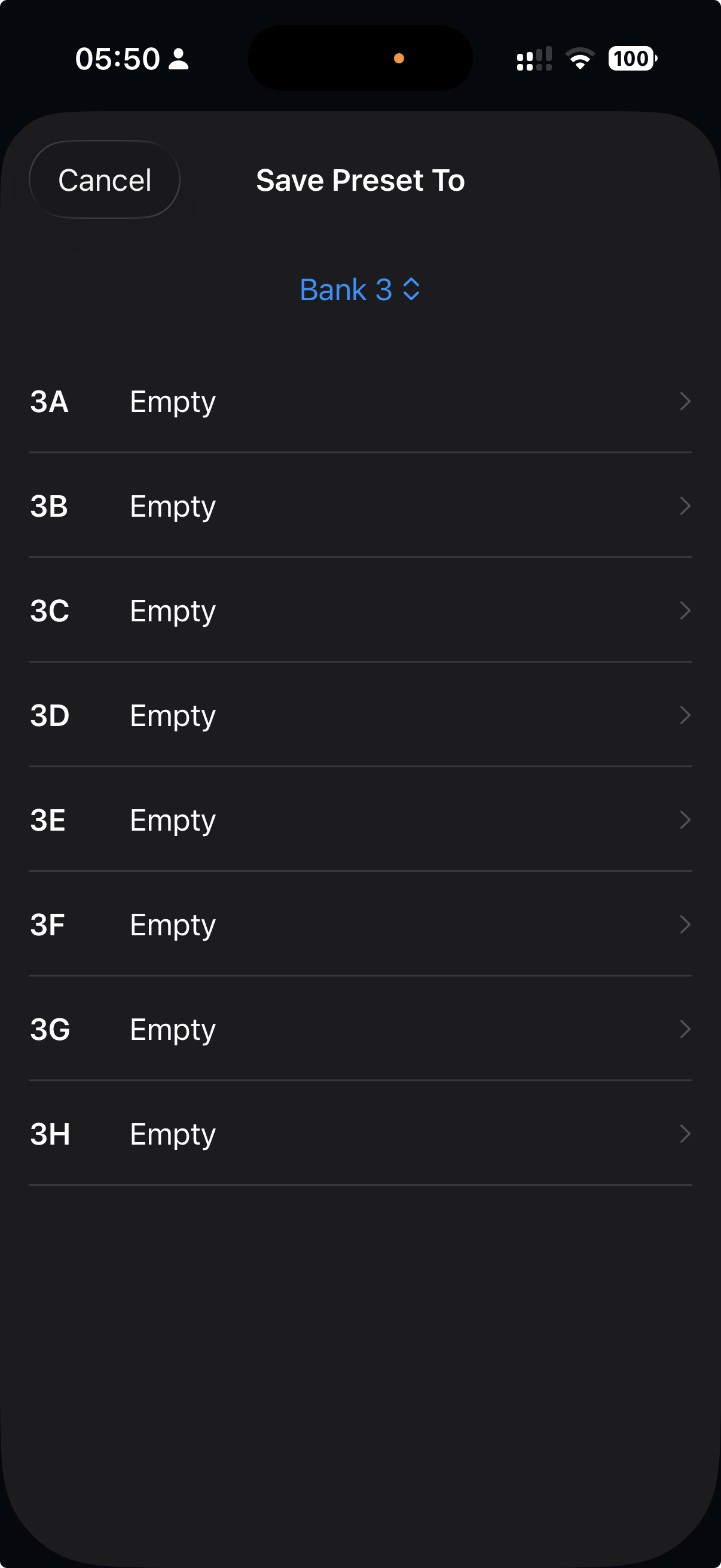
ToneRig Save Preset To picker showing all eight slots in Bank 3
Touch and hold Save to choose any bank and destination slot.

Save a preset

Tap Save to update the current slot. Touch and hold Save, then choose Save To Bank to store the current rig in any of the 16 banks and 8 slots while seeing what each destination already contains.

Copy, paste, and clear presets

Touch and hold a preset tile to Copy Preset. Touch and hold another tile and choose Paste Preset to duplicate it. The same menu can clear or reset a slot, and can start MIDI Learn for direct recall.

Share and import presets

Choose Share Preset from a preset tile or the current preset menu to export a .tonerigrecipe file. The recipe contains the rig settings and references to required NAM and IR files, not copies of those files. Choose Import Preset or open a recipe from Files, review its required files, and select a destination slot. Locate missing local files or explicitly get listed TONE3000 assets before importing. You may also import with missing assets; those blocks remain bypassed until you resolve them. Confirming the import replaces the preset in the chosen slot.

Reorder presets

Drag a preset tile onto another slot to move it. ToneRig keeps the bank and active preset state in sync as the tiles change position.

Eight Snaps per preset

Snaps instantly recall effect parameters, bypass states, input and output gain, tempo, and parallel split or merge settings. Each Snap also saves and recalls settings for hosted AUv3 plug-ins with Controlled by Snaps enabled. Turn that option off to share a plug-in’s settings across all Snaps in the preset. Snaps do not change the effect layout or replace loaded NAM, IR, or plug-in instances.

Switch presets while playing

Control and bypass changes recall in place. For a preset with a different NAM, IR, or Audio Unit, ToneRig prepares available resources before switching the audio graph and protects changes that cannot be prepared. This reduces brief dropouts and level swells, including switches between presets that host Audio Units. If a shared preset shows a missing file or plug-in, resolve that dependency before expecting its original sound.

A cleaner Snaps workspace

Snaps hides unused Input B and its row while keeping active parallel paths visible. Edit mode keeps both inputs available for routing changes. An inspector closes if its selected Input B or split/merge control becomes hidden.

Rename, copy, and learn Snaps

In Snaps mode, touch and hold a Snap to rename it, start MIDI Learn Snap for direct recall, copy it, or paste a copied variation into another Snap. The active Snap stays visible in the workspace header.

Live mode

Live presents the current bank as eight large, color-coded preset tiles with summaries of loaded NAM captures, effects, and Audio Units. Use the bank controls at the bottom or MIDI to move without returning to Edit.

06

MIDI control

Use a foot controller for direct recall, performance switching, bypass, tempo, and continuous parameters.

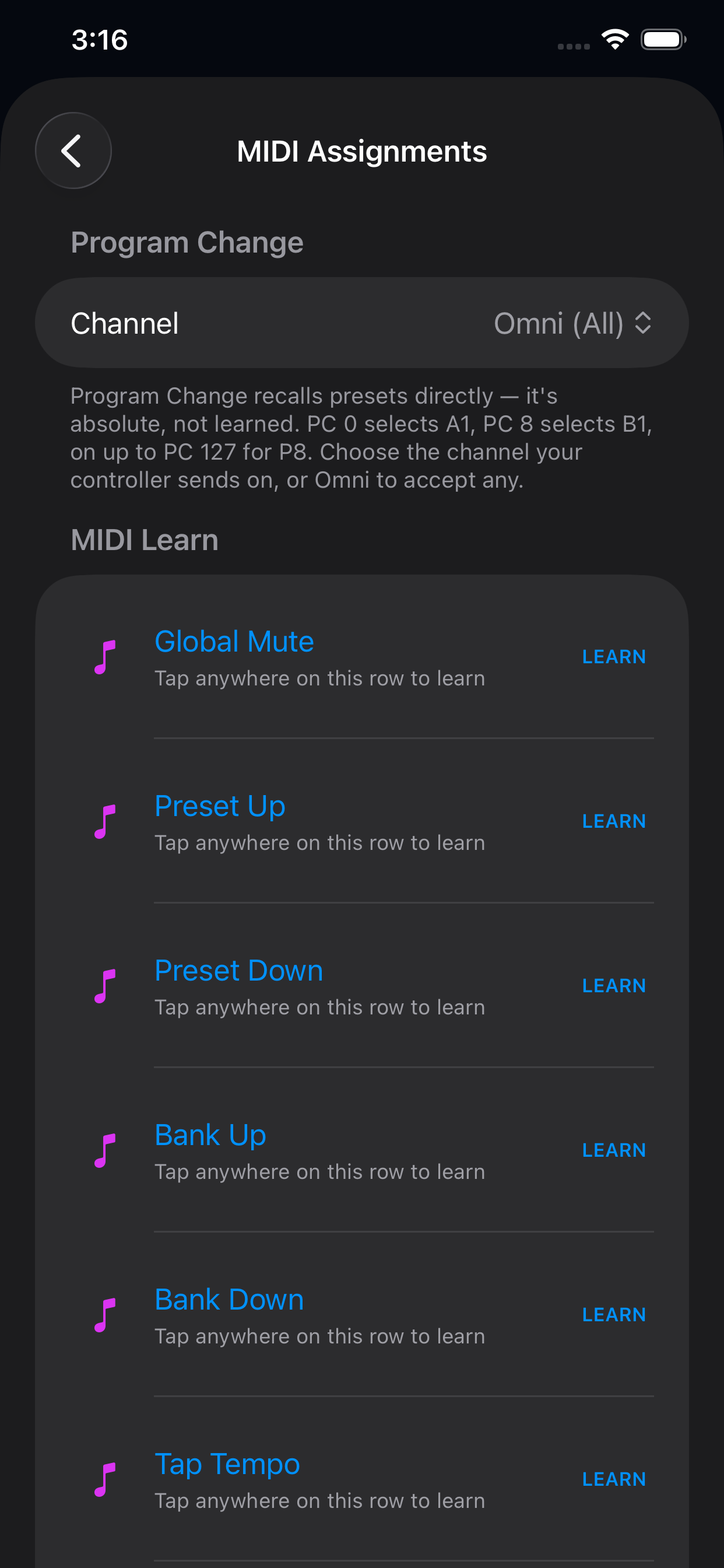
ToneRig MIDI Assignments showing Program Change and MIDI Learn actions
Program Change is absolute; MIDI Learn handles performance actions and controls.
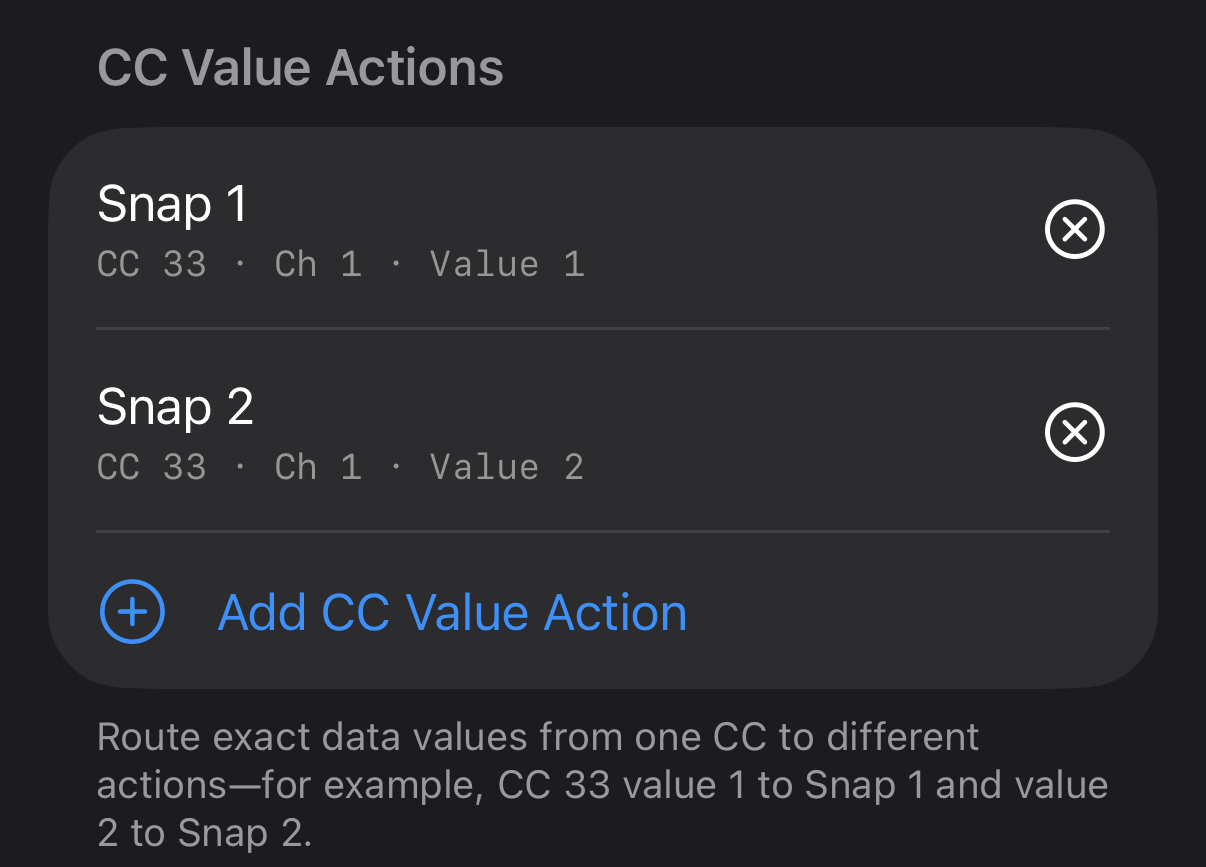
ToneRig CC Value Actions mapping CC 33 values 1 and 2 to two Snaps
One CC can address many actions by assigning each incoming value separately.
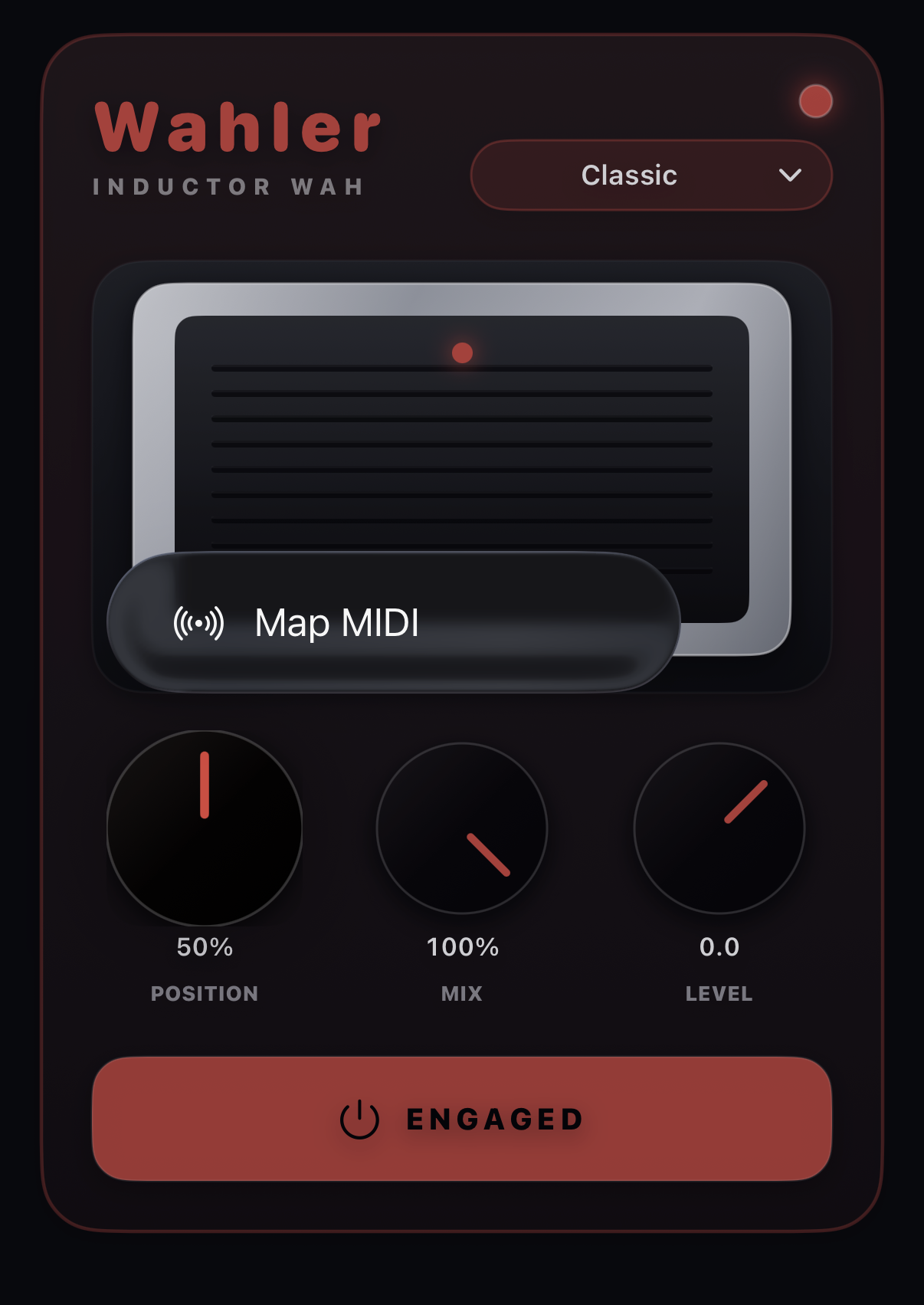
ToneRig Wah controls showing Map MIDI after holding the Position knob
Touch and hold Position to reveal Map MIDI, then move the expression pedal to assign it.

Connect a controller

ToneRig listens to available Core MIDI sources. For a wireless controller, open Settings and Bluetooth MIDI to pair it. The assignment screen shows global mappings plus mappings belonging to the current preset.

Follow MIDI Clock

Open Settings → MIDI Assignments and turn on Sync Tempo to MIDI Clock, then start a connected clock source. ToneRig follows incoming 24 PPQN pulses for tempo; Start, Continue, and Stop control the metronome transport. The status row shows whether clock is being acquired, followed, or lost. The AUv3 editor has the same toggle for routed MIDI Clock, while a host's tempo remains authoritative when it provides one. ToneRig receives MIDI Clock but does not send it.

Program Change is absolute

Program Change recalls preset slots directly and does not use MIDI Learn. PC 0 selects A1, PC 8 selects B1, continuing through PC 127 for P8. Choose a specific channel or Omni to accept Program Change on all channels.

MIDI Learn

Open Settings → MIDI Assignments and tap Learn for a global action, then send a note or CC. You can learn Global Mute, Preset Up/Down, Bank Up/Down, Tap Tempo, Edit/Snaps/Live mode, Tuner On/Off, Metronome Start/Stop, looper commands, and metronome volume. Exact On, Off, Start, and Stop actions make LED footswitch states and one-way commands predictable.

Learn controls where they live

Touch and hold a preset for direct preset recall, a Snap for direct Snap recall, an effect for bypass, a supported knob for continuous control, or the metronome Start/Stop button for transport. Sending the desired note or CC completes the assignment.

Direct Snap and preset selection

MIDI actions include Snap Up/Down, Snaps 1–8, and Presets 1–8. Direct Preset actions address the eight slots in the current bank; Program Change remains the way to address all 128 slots absolutely.

Exact CC-value actions

One CC number can route different data values to different actions. For example, CC 33 value 1 can select Snap 1 while value 2 selects Snap 2. Conflicting values are flagged before an existing assignment is replaced.

Control ToneRig from other apps

The standalone app publishes a stable ToneRig MIDI Input destination for Note, CC, and Program Change messages sent by apps such as Loopy Pro. In an AUv3 host, every general MIDI action is also exposed as a momentary Audio Unit parameter, so the host can automate preset, bank, Snap, bypass, tap-tempo, tuner, metronome, and looper commands even while the ToneRig editor is closed. MIDI handling remains a Pro feature.

Control a hosted AUv3 plug-in

On iPhone or iPad, open the hosted plug-in window and tap MIDI, or use the block’s context menu to open its MIDI controls. MIDI Assignments lists each instance’s writable parameters. Tap Learn for a parameter, then send a CC or note from your controller. The learning prompt and Cancel button appear in the plug-in MIDI window; closing it cancels learning. These assignments belong to the preset.

Use a plug-in’s own MIDI Learn

For a hosted plug-in that supports MIDI input, enable MIDI forwarding in its MIDI controls and use the plug-in’s own MIDI Learn. Plug-ins without MIDI input can still expose writable parameters for ToneRig’s direct mappings. Routing and MIDI-driven plug-in edits mark the preset as edited; save the preset to capture its live plug-in state.

Toggle plug-in buttons with a footswitch

For a hosted AUv3 button parameter, enable Toggle on Press in its assignment. Each press can alternate the button on and off even when the footswitch always sends the same CC value, including zero. Leave Expression Pedal off for a footswitch.

Map a wah pedal

Open the Wah controls, then touch and hold the Position knob until Map MIDI appears. Tap Map MIDI and move the expression pedal through its travel to create the assignment. If heel and toe move the wah in the wrong direction, open Settings → MIDI Assignments, select the Wah Position assignment, enable Expression Pedal, and turn on Reverse.

Expression pedals

Learn a CC to a compatible continuous parameter, open its assignment in MIDI Assignments, and enable Expression Pedal before calibrating the physical heel and toe positions. A learned CC is not automatically treated as an expression pedal. Calibration is saved per learned pedal, filters endpoint jitter while capturing, and can reverse direction when the hardware travels opposite the desired control.

Edit or clear mappings

Tap an assignment to edit its message type, channel, or number. Clear one mapping from its row, clear a block or control from its touch-and-hold menu, or use Clear All Assignments to remove global, value, preset, bypass, and knob mappings together.

07

Tuner, tempo, and metronome

The practice tools are always close, and their important actions can be learned to MIDI.

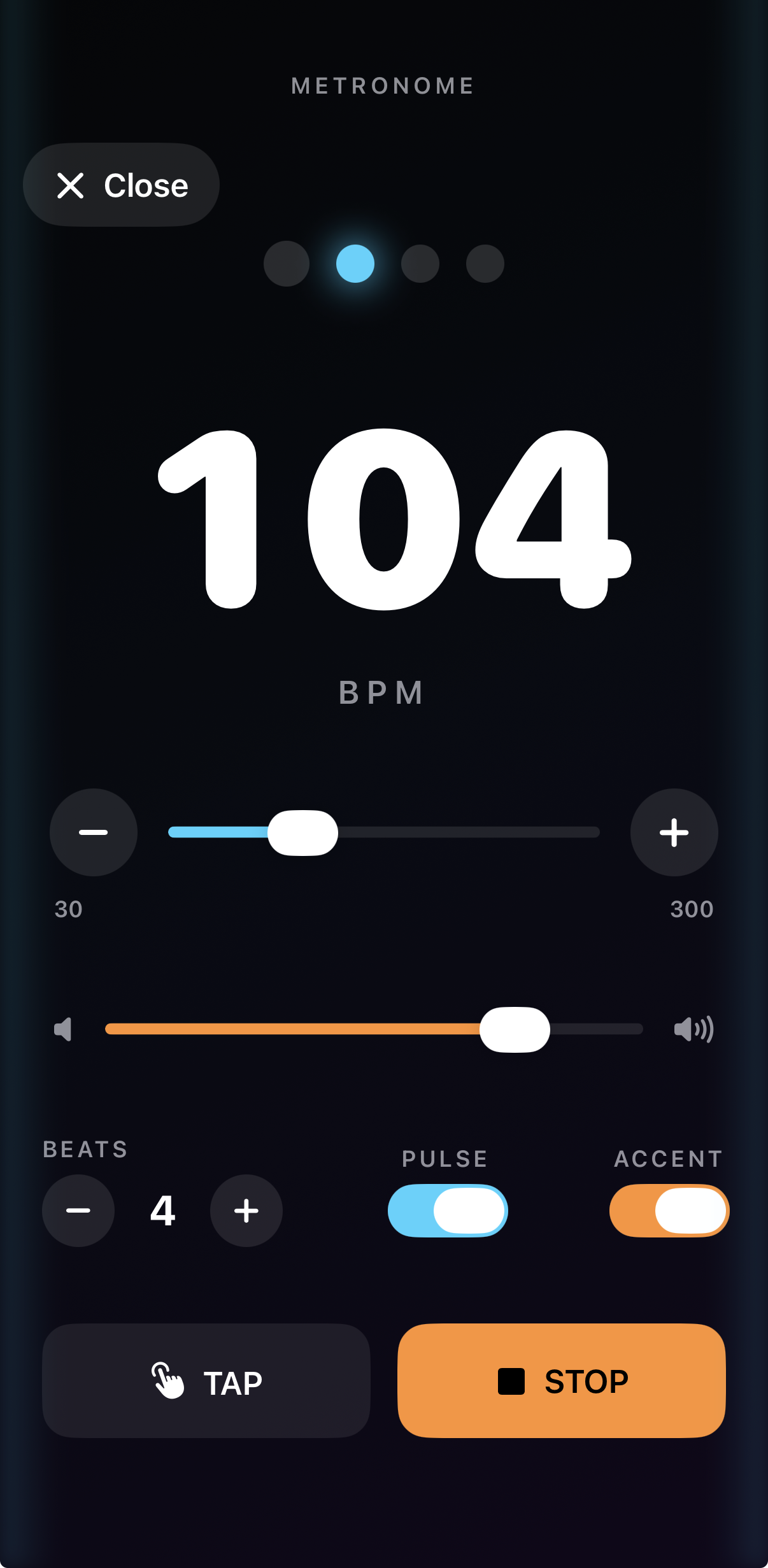
ToneRig metronome showing BPM, volume, beats, pulse, accent, tap, and stop controls
Tempo, volume, meter, visual pulse, accent, tap, and transport all remain on one screen.

Chromatic tuner

Open Tuner from the workspace. It listens to a boosted private analysis feed and displays note, octave, cents, and frequency once the signal is strong enough. The AUv3 tuner uses more accurate, lower-CPU analysis and mutes the effects input while tuning so you hear only the tuner. If it stays on Waiting for signal, use it as a quick check of the selected input and cable path.

Tap tempo

Tap the tempo control repeatedly to set BPM. With Global Tap Tempo off, tempo is saved and recalled per preset. Turn it on in Settings to keep one tempo across presets and sessions.

Metronome

Choose tempo, one to twelve beats per measure, accent behavior, and volume, then start or stop playback. Touch and hold Start/Stop to assign it to MIDI. In AUv3, pressing Play in the host does not automatically start the practice metronome. External MIDI Clock Start, Continue, and Stop remain supported when clock following is enabled.

Visual pulse

Metronome Pulse can flash both sides of the app in time. Accented downbeats use orange and regular beats use cyan. The preference persists between launches and can be disabled when you want a quieter stage screen.

08

AUv3, Mac, and backup

Use ToneRig inside a host or as a native Mac app, move your library through iCloud, and know which features belong to each build.

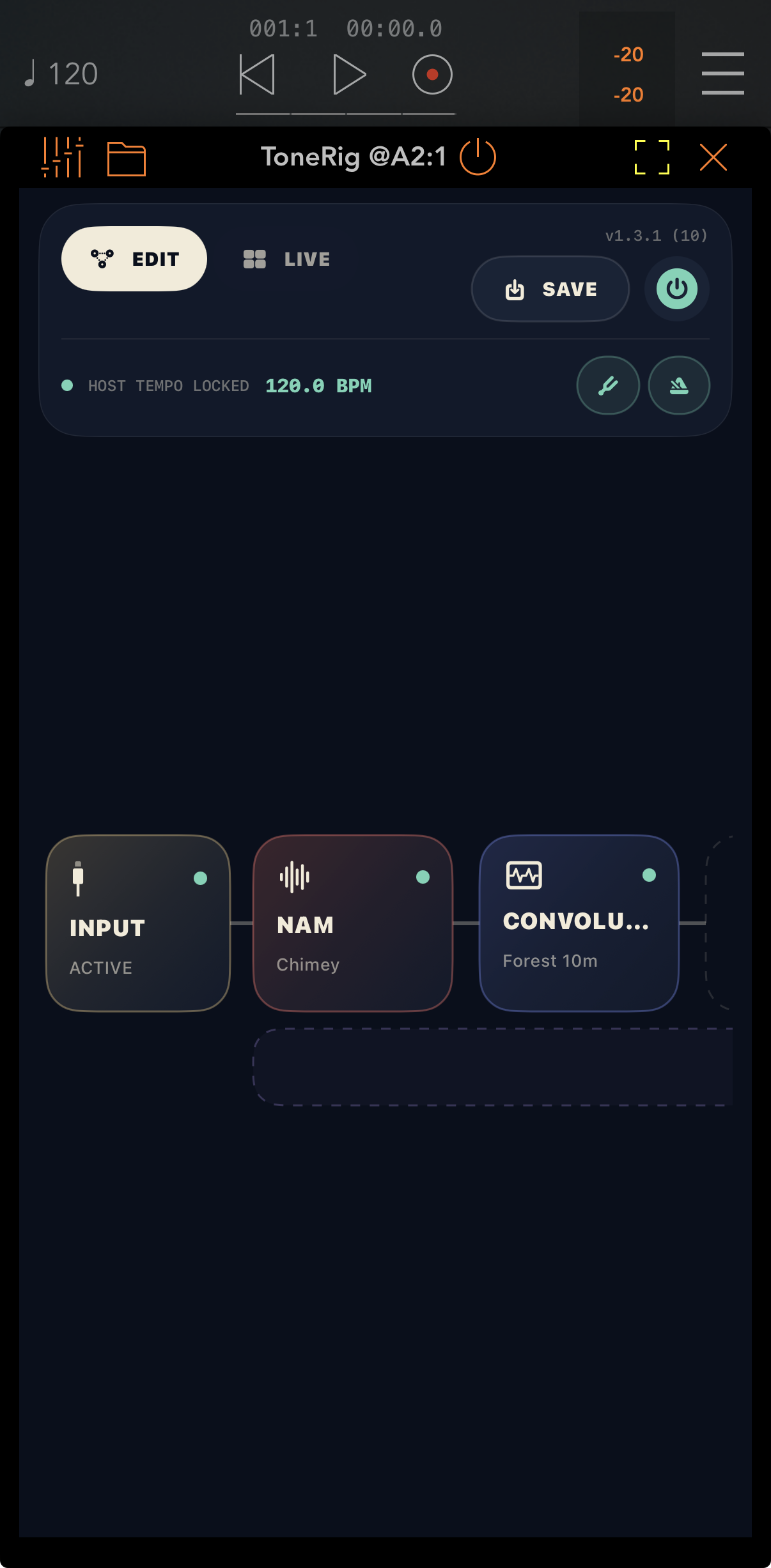
ToneRig AUv3 running inside an audio host with host tempo locked
ToneRig inside an AUv3 host, following host tempo while keeping its editable signal chain.

Use ToneRig as an AUv3 effect

Launch the standalone app once to initialize shared storage, save at least one preset, then add ToneRig as an audio effect in a compatible host such as GarageBand, Logic, or AUM. Refresh or reopen the plug-in if newly saved presets do not appear immediately.

Host controls and state

The extension exposes preset selection and automatable input, output, mix, and bypass parameters, plus momentary parameters for every general MIDI action. Its editor has Snap controls, parallel-lane editing, a unified slider view, and more built-in effect editors. It follows host tempo where available, restores its full state, and includes the tuner and metronome. Use the ToneRig MIDI Music Effect identity in hosts that need a MIDI destination on the loaded audio processor; the original ToneRig Effect identity remains available in standard audio-effect browsers.

NAM and Bass Synth in AUv3

The AUv3 can load and process up to four NAM blocks and keeps their models assigned across Snap bypass changes. Bass Synth also processes inside the Audio Unit with its standalone controls and presets. When dragging or automating continuous effect controls in the plug-in, ToneRig updates the running effect without rebuilding the whole chain on each move.

Use the native Mac app

ToneRig on Mac uses the same preset library and pedalboard workflow. The Mac App Store build stays sandboxed and lists only the Audio Units macOS allows it to load, so every plug-in shown is one it can open.

Current AUv3 limits

The extension renders NAM, Cab IR, Bass Synth, delay, multiple independent reverb blocks, and parallel lanes. Its hardware output is managed by the host, so direct Output A and Output B interface destinations remain standalone-only. Nested third-party AUv3 effects are not supported inside ToneRig's AUv3 extension.
Back up to iCloud

ToneRig Pro can manually back up presets, NAM models, and IRs to your private iCloud, then restore them on another device using the same Apple Account. Restore replaces the local library, so use a fresh backup before moving between devices.

09

Troubleshooting

Most setup problems can be narrowed down with the meters, route readout, and overload counter.

No input signal

Confirm the interface is selected, the instrument is connected to the chosen input, and Global Mute is off. Open the tuner and watch the input meter. If neither responds, change the input channel or test the interface in another audio app.

Dry sound under the rig

Disable direct or hardware monitoring on the audio interface. Direct monitoring sends the unprocessed input straight to the outputs while ToneRig sends the processed signal, so both are heard together.

Clicks, crackles, or overloads

Open Settings and check Audio Overloads. Increase the buffer, reduce A2 NAM quality, bypass the heaviest effects, or simplify the chain. Convolution reverb, full-quality NAM, and third-party Audio Units can use more of the real-time budget.

A shared preset is missing its sound

Open the imported preset's missing-file or missing-plug-in notice. A .tonerigrecipe does not include NAM or IR audio files: locate your copy, explicitly retrieve a listed TONE3000 asset, or install the required plug-in. Blocks with unresolved dependencies remain bypassed rather than loading the wrong sound.

An independent output is silent

Check that Output A or Output B is assigned to a channel or stereo pair present on the connected interface. A saved destination that is unavailable stays silent; select an available output or reconnect the interface that provides it. Also check global mute and that the lane has an input source.

Loud feedback

Lower the interface output and ToneRig output before loading high-gain captures. Keep speakers away from the instrument and begin with headphones when testing an unfamiliar model.

NAM or IR missing after a restore

ToneRig 1.4.0 resolves preset assets in the current library after app storage migration or restore, including library subfolders. If the actual file is absent, restore it from your backup or locate it again; path recovery cannot recreate missing audio files.

MIDI does not respond

Verify the source is connected, the assignment channel matches, and the learned note or CC number is correct. Program Change has its own channel setting and will not appear as a learned mapping. For exact-value actions, also confirm the incoming CC data value. If tempo is not following a clock source, enable Sync Tempo to MIDI Clock and check its status; reconnect a Bluetooth MIDI device if it dropped after sleep.